Credit Note Creation
How to Create Credit Note?
To create a credit note that deducts an amount from the customer statement, you can do so by following these steps:
Option 1: Create a Credit Note from Scratch:
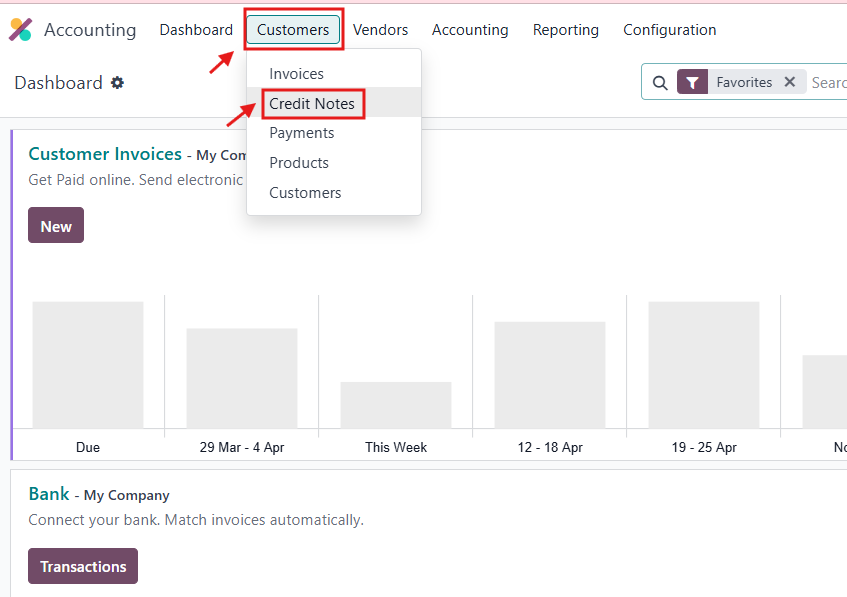
Go to Accounting App → Customers → Credit Notes, then click New.
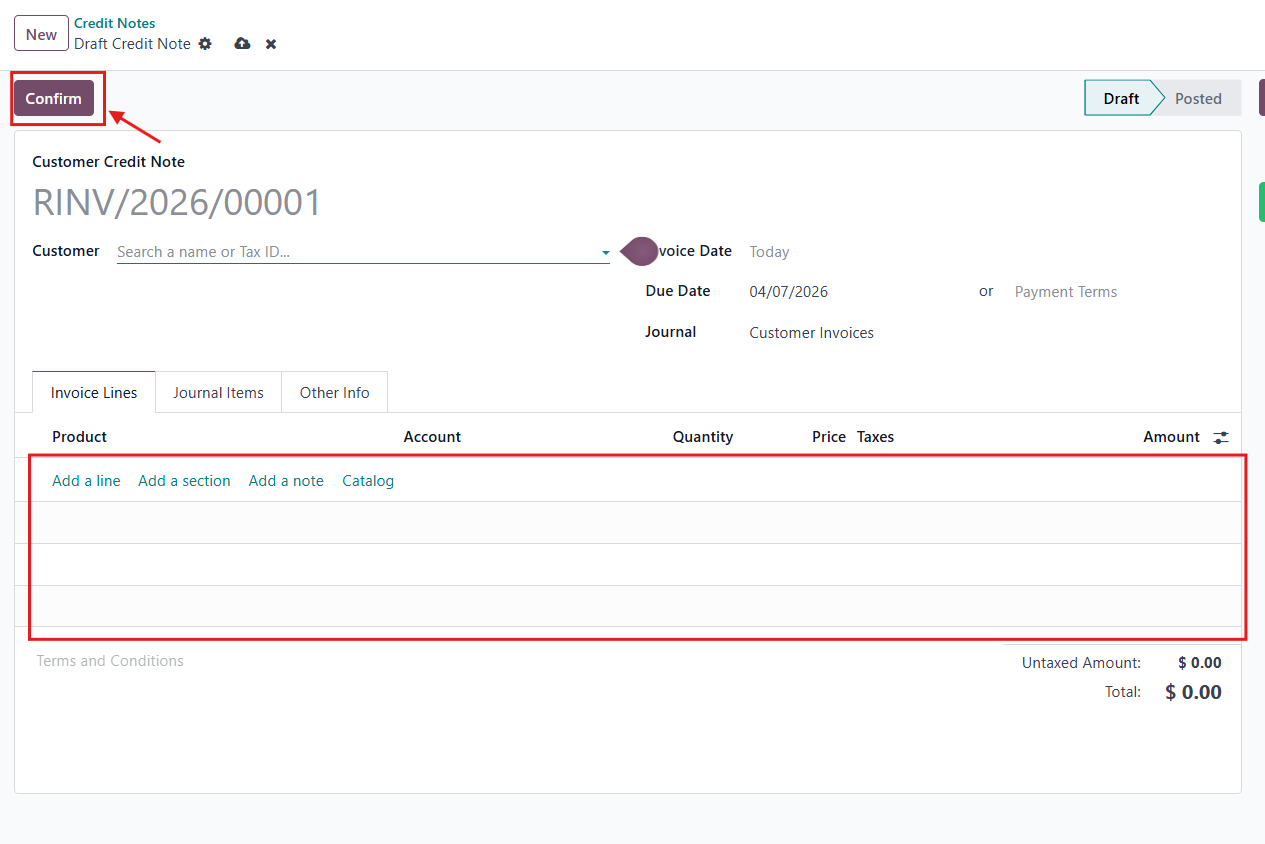
Add the product you want to deduct from the customer’s account and review all details carefully.
Once everything is correct, validate the credit note.
Option 2: Create a Credit Note from an Existing Invoice:
If you prefer not to create a credit note from scratch, you can create it directly from the relevant invoice:
Open the invoice from which you want to return the amount, then click Credit Note.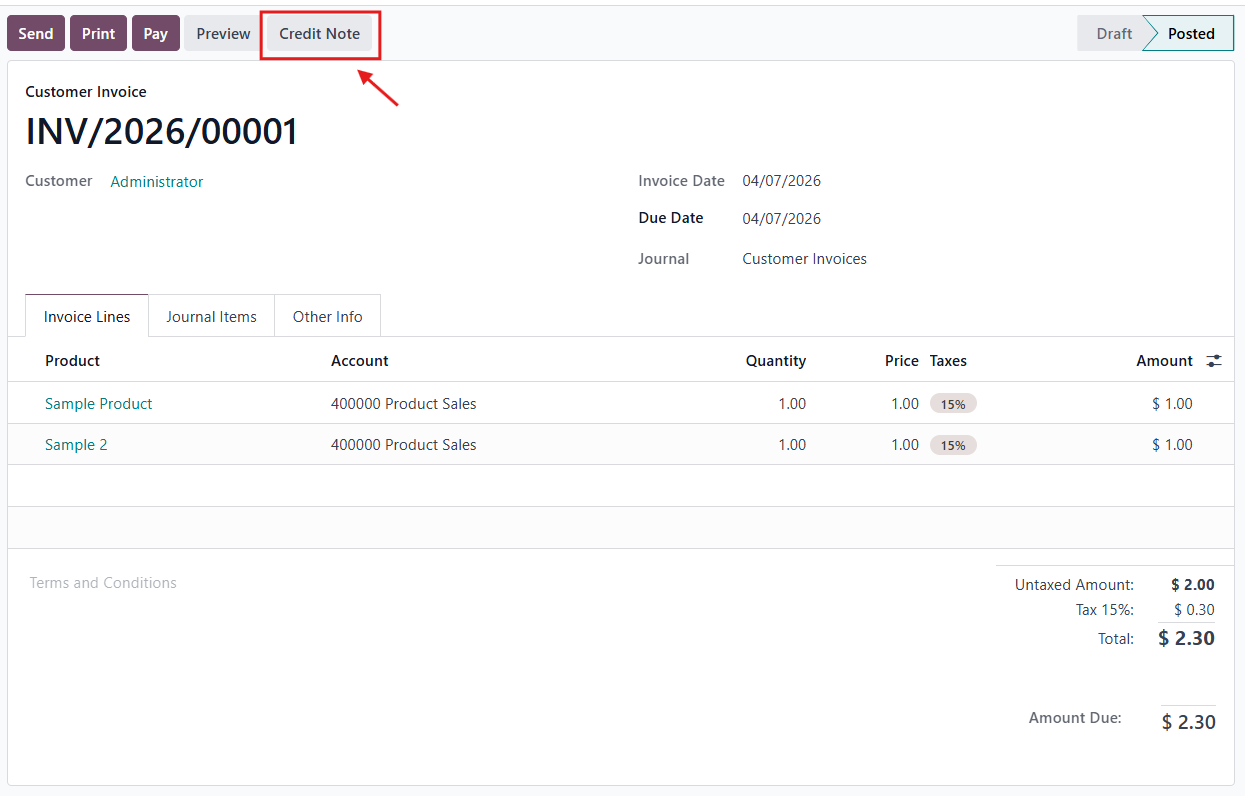
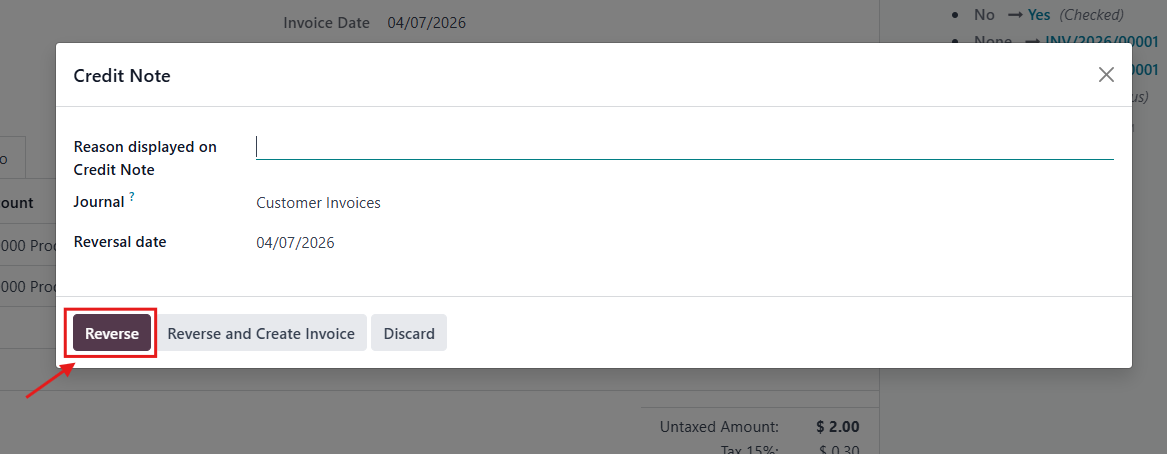
Enter the reason for deducting this amount from the customer balance (or leave it empty) and click Reverse.
You can remove any undesired lines simply by deleting them.
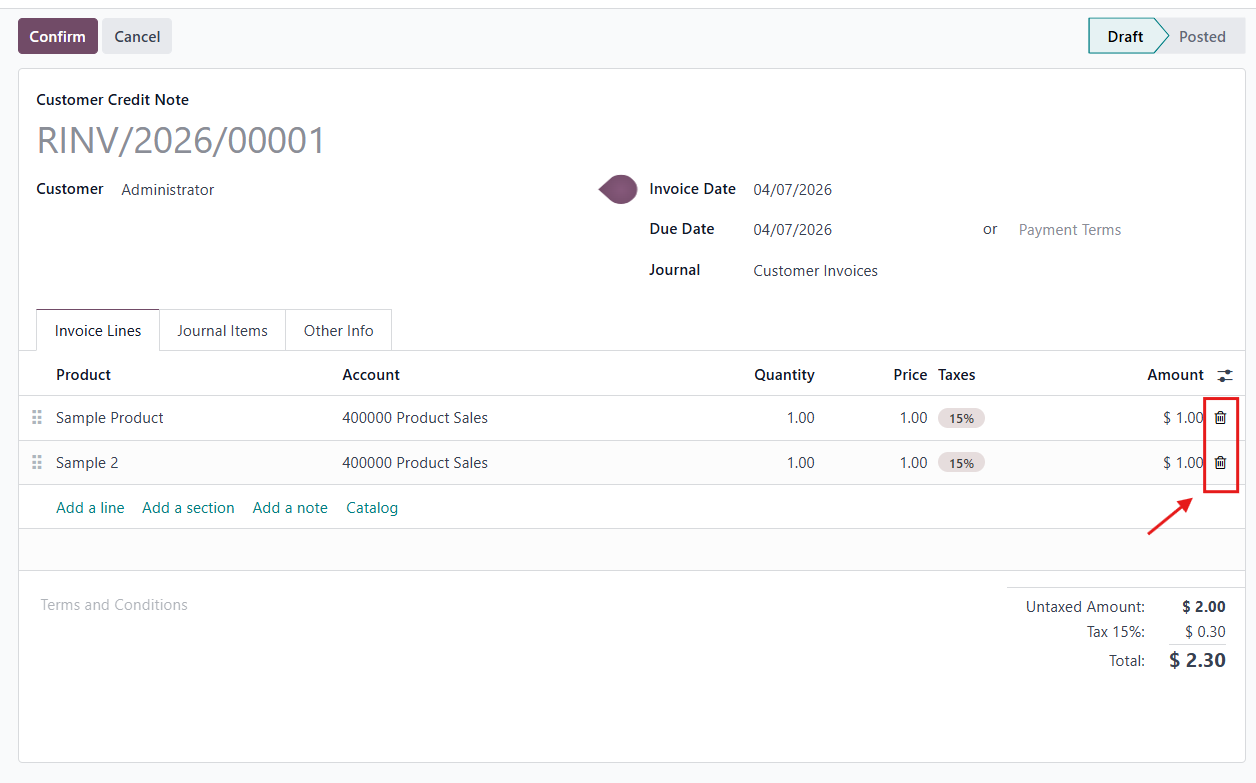
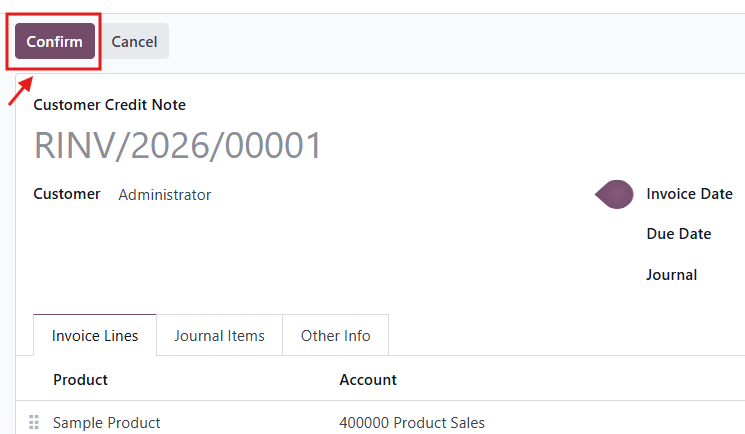
After that, keep only the invoice lines you want to return and click Confirm.
Notes:
A credit note only affects the accounting records and does not impact inventory.
If a customer has already paid an invoice and you issue a credit note, the customer will have a negative balance (meaning you owe them money). To fully settle this balance, the credit note must also be paid.
Example:
A customer purchases items and pays immediately, so the invoice is fully settled. Later, the customer returns the products due to defects. When you create a credit note, it records a negative amount on the customer’s account, indicating that you owe them. To close this balance, you need to process a payment for the credit note.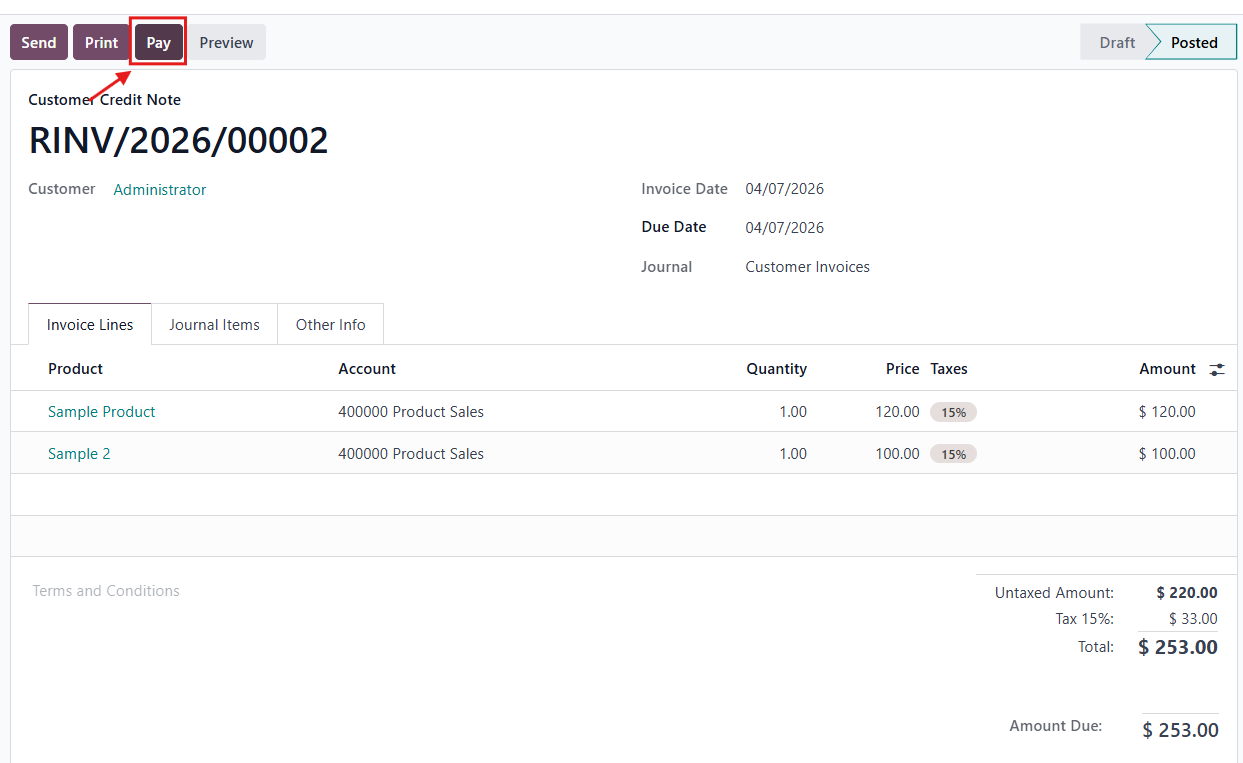
There are no comments for now.
to be the first to leave a comment.