Edit Existing Products
How to Edit Existing Products by Exporting and Importing Them?
- First, open the Inventory app > Products > Products.
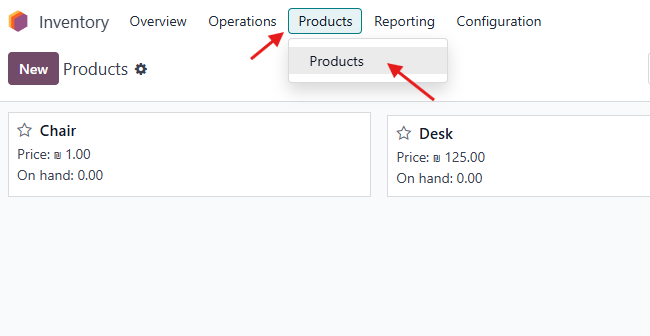
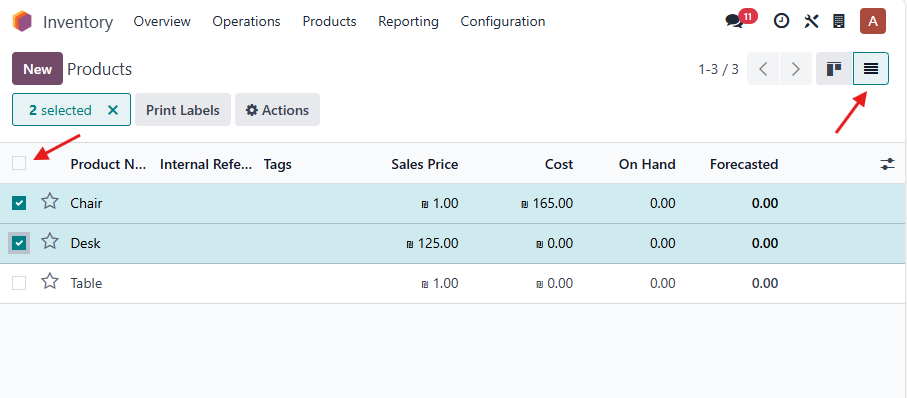
- Change the view to List View.
- Select the products that you want to edit.
-
Click on Actions > Export.
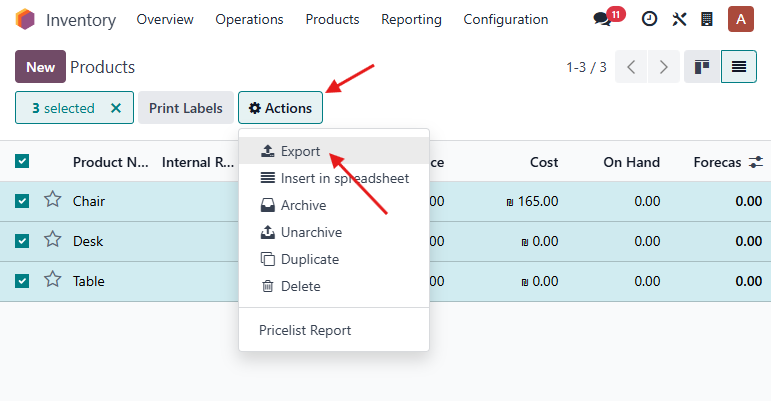
A new window will appear: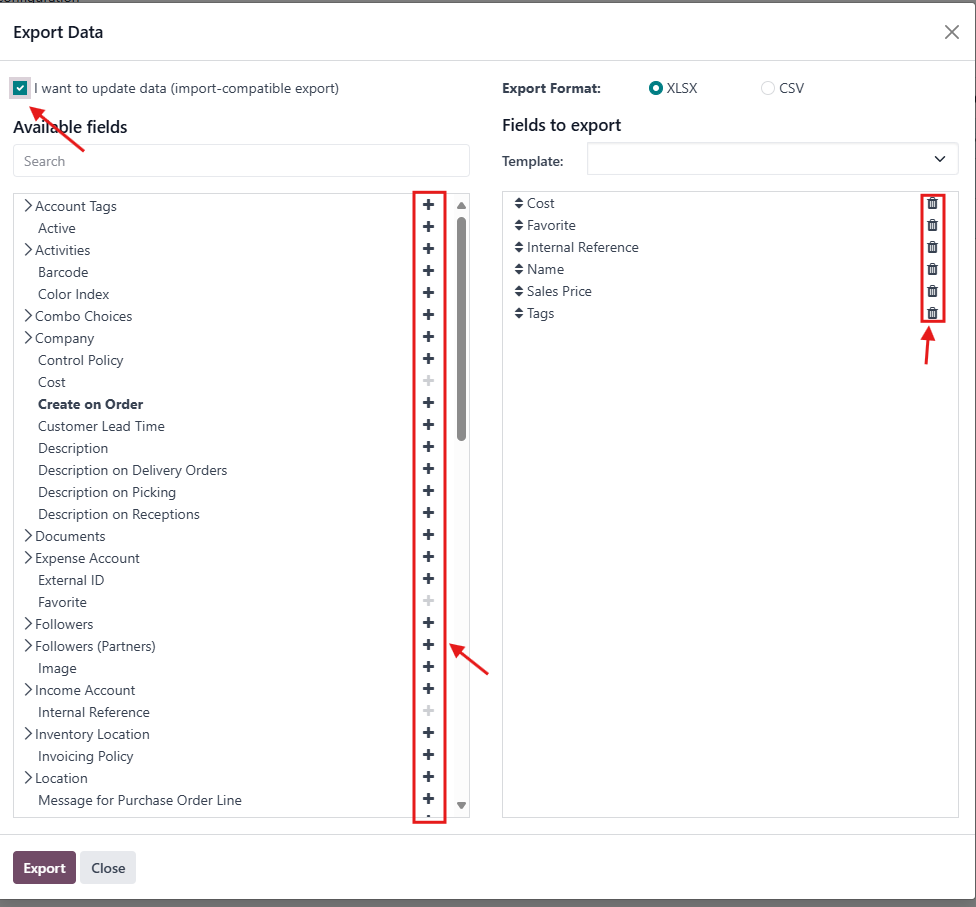
Make sure to enable the option “I want to update data (import-compatible export)"
- Select the fields you want to edit.
-
The right side of the window shows the fields that will appear in the Excel file.
→ To remove a field, click on the trash (🗑️) icon beside its name. -
The left side shows all available fields that are not selected by default.
→ To add a field, click on the plus (+) icon beside its name.
-
The right side of the window shows the fields that will appear in the Excel file.
- Once done, click Export.
-
Open the exported Excel file and edit it as needed.
Note:
Do not delete the first column (External ID). This column is crucial because Odoo uses it to identify existing products in the database.
If you delete it and only keep the product names, Odoo will create new products instead of updating the existing ones. - After editing the Excel sheet, go back to Inventory > Products.
-
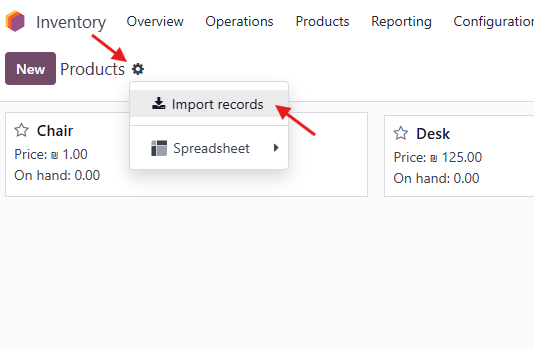
Click on the gear icon ⚙️ and select Import Records.
-
Upload the edited file, review the field mappings, and click Test.
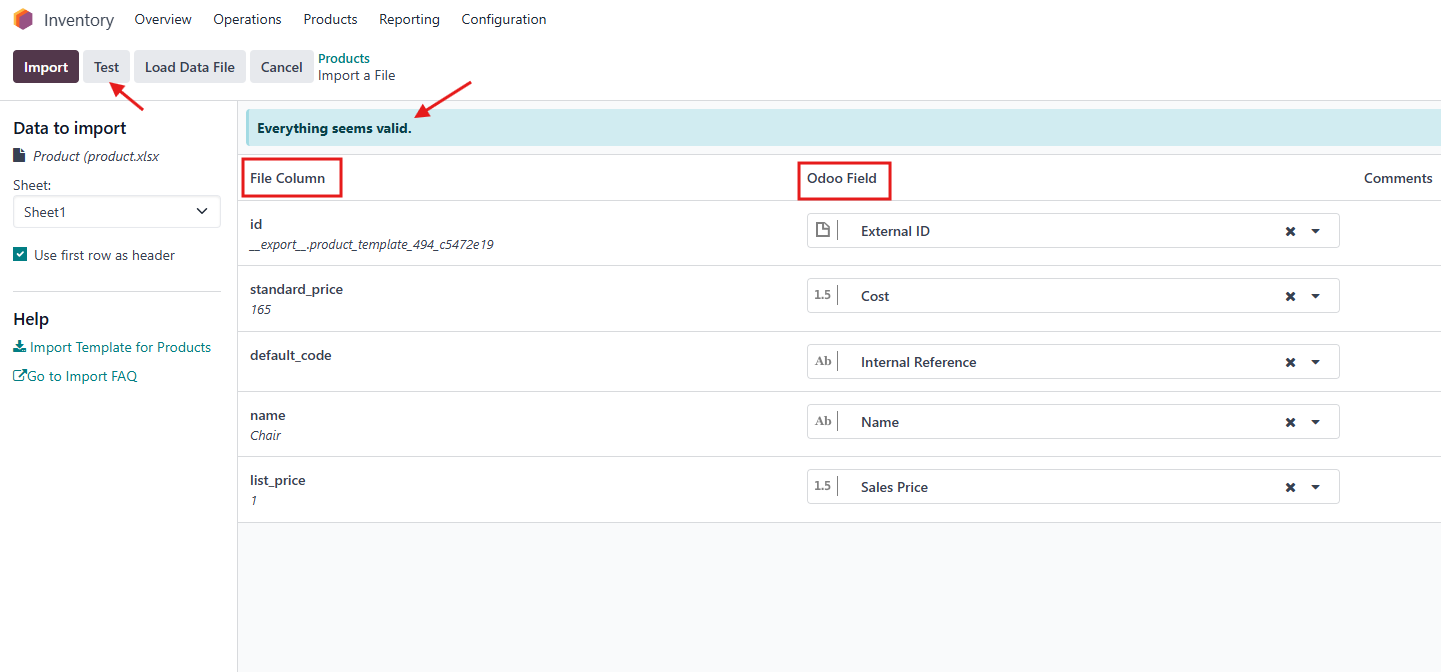
- If everything looks valid, click Import to apply your changes.
Rating
There are no comments for now.
to be the first to leave a comment.